FastField supports Custom PDF Reporting by associating a PDF Form Template to your FastField form. This allows you to achieve your own look and feel when generating your FastField reports. If a custom template is not provided, the generic reporting is still available.
Custom PDF Requirements
Adobe Acrobat - To design your own custom PDF, you will need Adobe Acrobat. Our tools do not support Adobe LifeCycle or other third-party solutions. Adobe Acrobat Reader is not sufficient for setting up report templates as it does not allow you to create documents and is a read-only application.
Note
If you do not have Adobe Acrobat or need assistance setting up your Custom PDF Report Template, we can help. We offer customizations and can provide you with a quote to set up your report. Please contact FastField Support.
How it works
Your data is submitted via the FastField mobile application.
Your data is then mapped and merged directly into your Custom PDF Report Template, automatically matching the PDF Form Fields to your form using the Field Keys in your FastField form.
Your Custom PDF can then be generated and downloaded via the FastField Portal.
Set up your own PDF
Open your blank PDF Report in Adobe Acrobat. For demonstration purposes, we will use the following form:

Next, we will start adding Form Fields to the PDF template. To add form fields, you will need to open the Acrobat Form editor. The menu option may differ depending on the version of Acrobat you are using:

The list of form fields will look similar to the following:

Now place the PDF Form Fields on top of your blank PDF document. These fields will be populated by data collected from your FastField form. In the example below, we add a Text Box field where we want the Customer's Name to print:

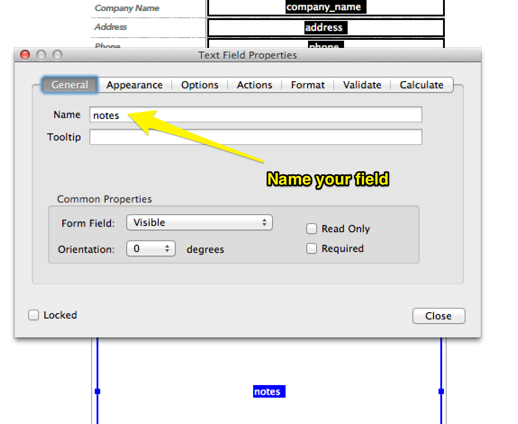
We then repeat this process for each field in the form. It is important to name your PDF Form Field to match the field's Field Key within your FastField form. Field Keys and Names are case sensitive. You can name the PDF Form Field by double-clicking on the field.
The following screenshot indicates where you define Field Keys within a FastField form:

Note: The following Form meta-data Fields can also be added to your custom PDF. These meta-data Fields include:
formName
updatedAt (created date)
userName (created by)
submissionId (unique submission id)
sequenceNumber (sequence Number)
Once you have placed all your Form Fields, save the PDF. You are now ready to upload and associate your PDF Template with your FastField form.
Upload the PDF template and assign it to your form
Once you have set up your PDF Template, you will need to upload the PDF to link it to your FastField form. To do this, open your FastField form using the FastField Portal.


When your form is open for editing, select the Reporting button.
Navigate to the Custom tab, and near the bottom, you will see a PDF area to upload your custom PDF.
Once uploaded, select Save.
Test your report
Now that you have uploaded your PDF Report Template and have linked it to your form, it's time to test it. Open up the FastField app and complete your FastField form:

Once you've filled out your form, submit it by tapping the Submit button. Once the form has been submitted, log in to the FastField Portal and select the form link in the Recent Submissions list. A dialog will appear as shown below:

Select the PDF button to download your PDF report. The PDF will now have the data you submitted from your FastField form. See the example below:

Field types
The following table defines which Field Types you should use in Adobe Acrobat when linking to specific fields in your FastField form:
FastField Field Type | PDF Form Field Type | Notes |
|---|---|---|
|
|
|
|
|
|
|
|
|
|
| Since Adobe Acrobat doesn't have a specific field for mapping an image, you can use the button field type to display an image in your report. Drag and drop the Button to match the size of the output you are looking for. |
|
| Since Adobe Acrobat doesn't have a specific field for mapping an image, you can use the button field type to display an image in your report. Drag and drop the Button to match the size of the output you are looking for. The field key should follow the naming convention of " |
|
| Since Adobe Acrobat doesn't have a specific field for mapping an image, you can use the button field type to display an image in your report. Drag and drop the Button to match the size of the output you are looking for. |
|
|
|
Option List
List |
or
or
| For a list selector that allows multiple selections, use a text box or a check box to display multiple selected values. If you are using single or multi-select with checkboxes, the setup is like this: fieldkey_listselectionvalue Set all export values to: "checked" When mapping to a checkbox in a subform, the syntax is as follows subformfieldkey_listpickerfieldkey_instancenumber_listvalue |
|
| Since Adobe Acrobat doesn't have a specific field for mapping an image, you can use the button field type to display an image in your report. Drag and drop the Button to match the size of the output you are looking for. |
|
| In Acrobat, make sure the field has "multi-line" checked off. |
|
| Like a Photo Selector field, the Button Field Type in Acrobat can display a signature image. You cannot use Acrobat's Signature field for this; it will cause PDF generation errors on your reports. |
|
|
|
|
| In Acrobat, make sure the field has "multi-line" checked off. |
| Not supported | Not supported |
| Not supported | Not supported |
|
| The numeric rating value will be displayed in the text field. |
|
|
|
|
| A Yes/No/NA field can be bound to a series of Radio Fields in Acrobat. Drag and drop 3 radio button fields onto your PDF within Acrobat. Name each field the same name as your Three-State field key in FastField. To indicate the Yes field, change the Export Value on one of the Radio fields to Yes's value. For the No field, change the Export Value to the value of No. On the last Radio button, change the Export Value to N/A. Alternatively, you can print Yes/No/N/A as a value by just placing a Text Field on the PDF Form |
Video | Not supported | Not supported |
 Text
Text
 Numeric
 Date/Time
 Single Photo
 Multi Photo
 Embedded Photo
 Switch


 Check Box
 Location/GPS
 Long Text
 Signature
 Calculation
 Static Text
 Audio
Audio Document Viewer
 Rating
 Formatted Numeric
 Yes/No/NA
Naming convention for multi photo selector fields
fieldkey_n where n represents the photo number, you want to display.
To display the caption, add a Text Field to your PDF Report Template and use the following naming convention:
fieldkey_n_caption
See example below

Subform reports
Subform data can be bound to your custom PDF reports as well. This is helpful for forms such as invoices or work orders that have repeating data.
To bind a subform field to your report, define the field name within Adobe Acrobat using the following naming convention:
 In the above example, Prospects is the Subform Picker Field Key from the Master Form, FirstName is the Field Key from the actual subform, and the numeric value of 1 and 2 indicate which rows to bind to.
You can place as many rows of subform as you want in your Custom PDF Template. Specify the row number at the end of the field name to let the reporting engine know which subform row you'd like to bind to. Since custom PDF templates are a fixed format, the max row count is capped to the number you place on your PDF Report Template.
Multi-photo fields in subforms
This setup can get a little confusing, so please familiarize yourself with the normal setup for subforms and multi photos within a custom PDF before moving to this. There is one slight tweak when adding multi-photo fields to a subform. Instead of the instance number remaining in the last (suffix) part of the key, it will now be moved to just inside the multi-photo instance number. Additionally, if you want to show the Caption to your photo in a separate text box, you will also have to add "_caption" to the key in the text box.
See the example below.

Repeating sections in Custom PDF Reports
Repeating sections can be set up to display in your custom PDF reports as well. There are some similarities and differences when compared to the setup of subforms in a custom PDF. You will NOT have to link the section key as a prefix before the field key; rather, you can place the field key as it is for the first instance of a repeating section. When you reach the second row, you will only have to place a _1 as the suffix of the key per each field, and each consecutive instance will add one to the suffix. So the third instance will be a _2 as the suffix.
See the example below.

Versioning
Your PDF Report Template is tied to your form's specific version. So if you update your PDF Report Template, older form submissions will use the older PDF Version to generate the report. To test new PDF Reports that you re-link with your form, be sure to refresh your form library on your device to sync the latest forms from the FastField server.